
Similar and Related Products for JoomShopping 5+

The extension automates the creation of similar and related product lists in JoomShopping. Instead of assigning links manually for every product, you define a selection rule, choose the products to process, specify the donor product source, and run the operation.

For JoomShopping 5+

Below is a step-by-step workflow: from selecting recipient products to running a specific donor selection method.
  • Similar products
    Alternatives to the current product: similar by price, characteristics, SKU, labels, or other rules.
    ALTERNATIVE
  • Related products
    Products that logically complement the main purchase.
    RELATED
  • Bulk processing
    Rules can be applied to many products at once.
    AUTOMATION
  • Internal linking
    Created relations add extra internal links between product pages.
    CATALOG

Key concepts: recipients and donors

To use the extension correctly, first separate products into two roles.
  • Recipient products
    Products for which the similar or related product list is generated.
    RECIPIENT
  • Donor products
    Products that are added to the generated list of the recipient product.
    DONOR
  • Donor segment
    The source from which products may be selected: category, manufacturer, or vendor.
    LIMIT

Simple example

If you generate similar products for smartphone A, smartphone A is the recipient. Other smartphones selected by the rule are the donors.

Step 1. Select products to generate relations for

Open the JoomShopping product list. If you only need to process specific products, select them with checkboxes. Then click the Product linking button.
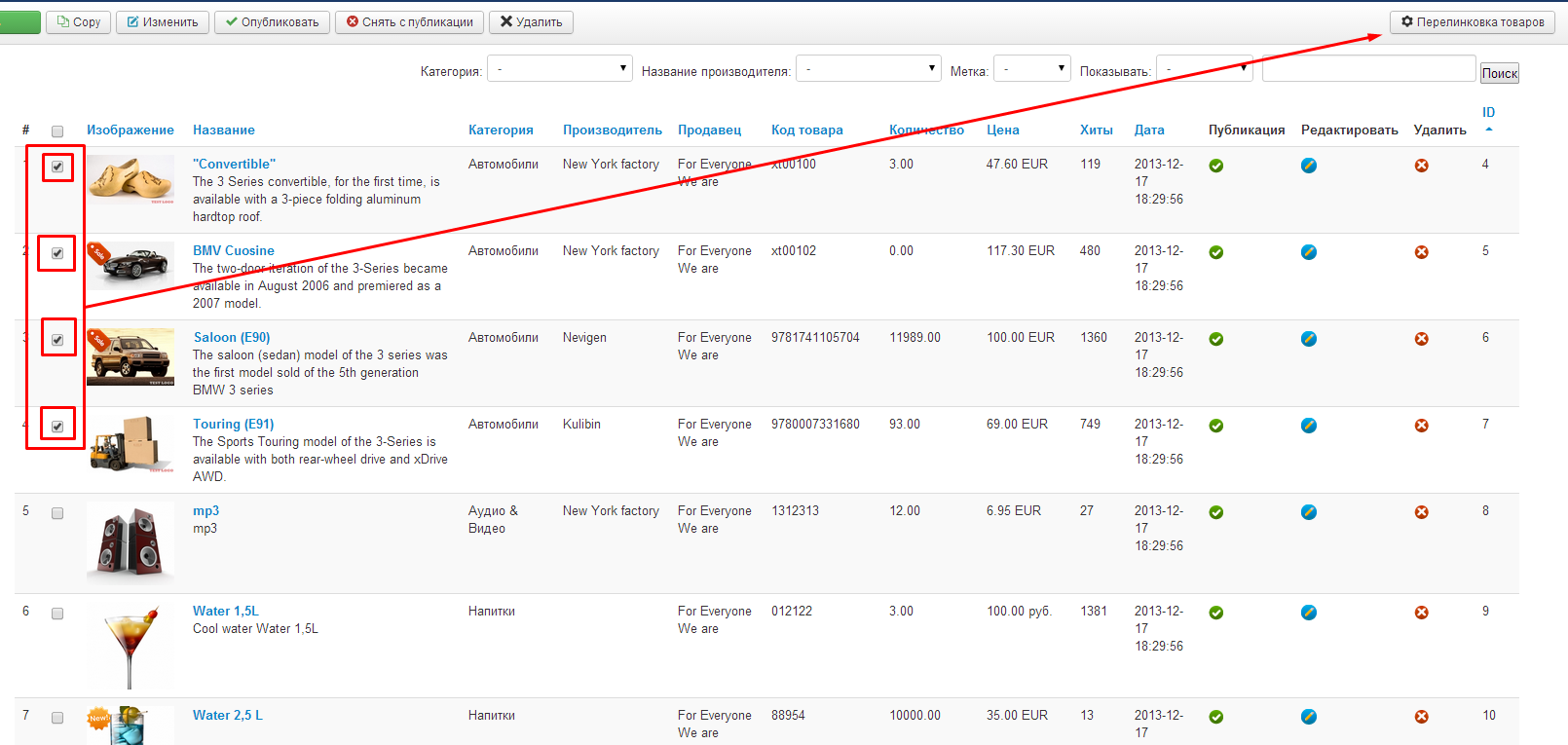
Selecting products in JoomShopping and the product linking button
The screenshot shows the selected recipient products. Similar or related product lists will be generated for these products.

You can process more than selected products

The extension also supports bulk processing for products from a category, manufacturer, or vendor. Selecting individual products is useful for testing a rule on a small set first.

Step 2. Choose the relation type

In the Target products section, choose which list should be generated:
  • Similar
    Substitutes or alternatives to the current product.
    SELECT
  • Related
    Products that complement the current product and may be purchased together with it.
    SELECT
Then, in Processing type, choose the method the system should use to find donor products.

Step 3. Choose the product selection method

Each selection method follows the same basic workflow: define the number of products, choose the donor source, set the matching condition, and optionally apply additional quality filters.

By price

Use this mode when similar or related products should be selected relative to the current product price.
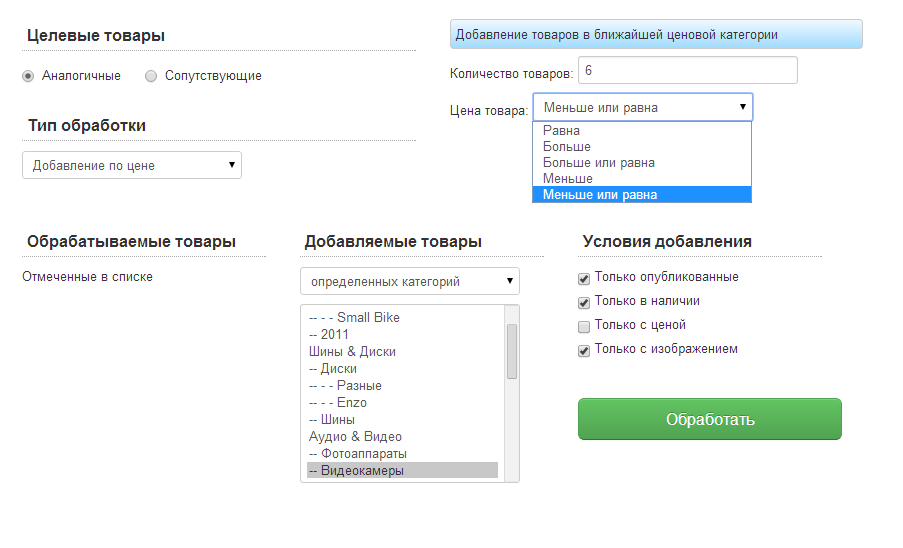
  • Number of products
    How many products should be added to the list.
    STEP
  • Product price
    Choose the condition: equal to, greater than, greater than or equal to, less than, or less than or equal to.
    CONDITION
  • Donor products
    Specify the category, manufacturer, or vendor from which donor products may be selected.
    SOURCE
  • Add conditions
    If needed, include only published products, products in stock, products with a price, and/or products with an image.
    QUALITY
Settings for selecting similar products by price
Example: add 6 products from the selected segment whose price matches the specified condition relative to the recipient product price.

By product ID

Use this mode when you already know exactly which products should be added.
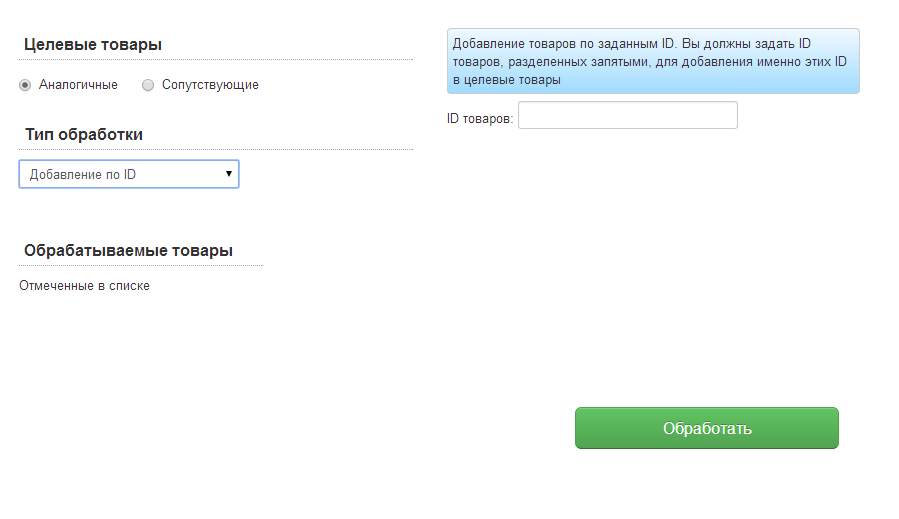
  • Product IDs
    Enter the exact IDs of donor products.
    CONDITION
  • Multiple IDs
    IDs can be entered as a list according to the format expected by the extension form.
    LIST
Adding similar or related products by ID
This mode does not search by properties — it adds exactly the products whose IDs you specify.

By text in product name

Allows products to be selected when their names contain the specified text.
  • Number of products
    Specify the maximum number of products.
    STEP
  • Contains text
    Enter a word or text fragment that the system should find in the donor product name.
    CONDITION
  • Donor segment
    Limit the search to the required category, manufacturer, or vendor.
    SOURCE
Selecting products by text in the name
This mode is useful when product names contain consistent words or identifiers for a series, model, or purpose.

By SKU (EAN)

Use this when related products can be identified by a common part of the SKU.
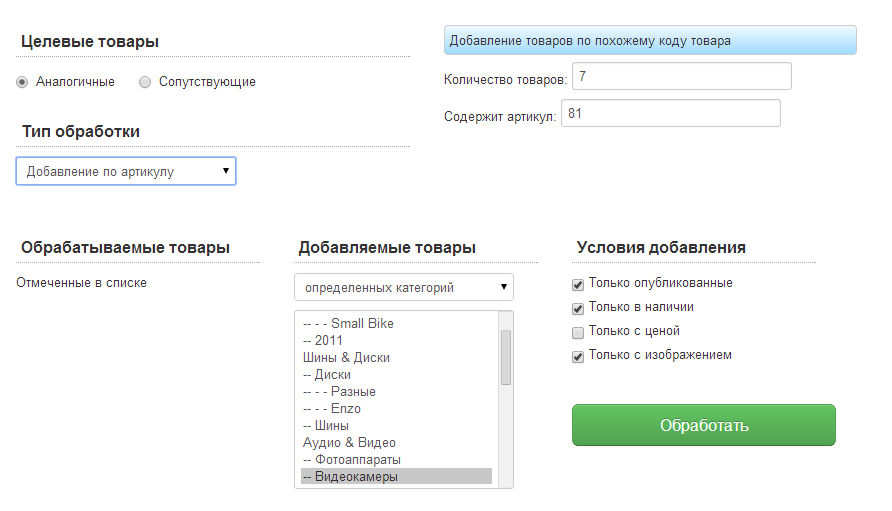
  • Number of products
    Number of products to add.
    STEP
  • Contains SKU
    Enter a character sequence that must be present in the donor product EAN/SKU.
    CONDITION
Selecting products by part of the EAN/SKU
Useful for catalogs where part of the SKU identifies a series, group, manufacturer, or another shared property.

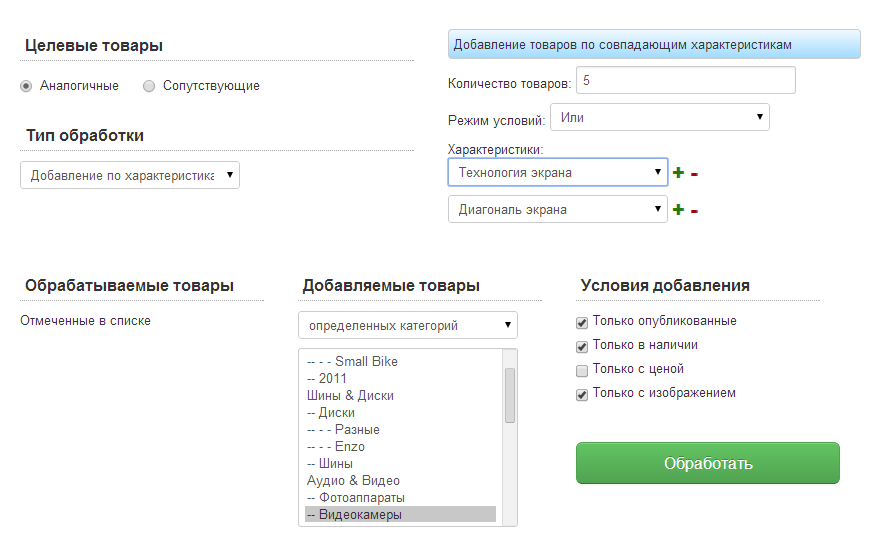
By characteristics

One of the most flexible modes. It allows products to be linked by one or more characteristics.
  • Number of products
    How many products to add to the list.
    STEP
  • Condition mode
    Choose AND or OR for multiple characteristics.
    LOGIC
  • Characteristics
    Add as many characteristics as needed.
    CONDITIONS
  • Donor segment
    If needed, limit the search by category, manufacturer, or vendor.
    SOURCE
Selecting similar products by multiple characteristics
In AND mode, a product must match all specified characteristics; in OR mode, matching any one of them is enough.

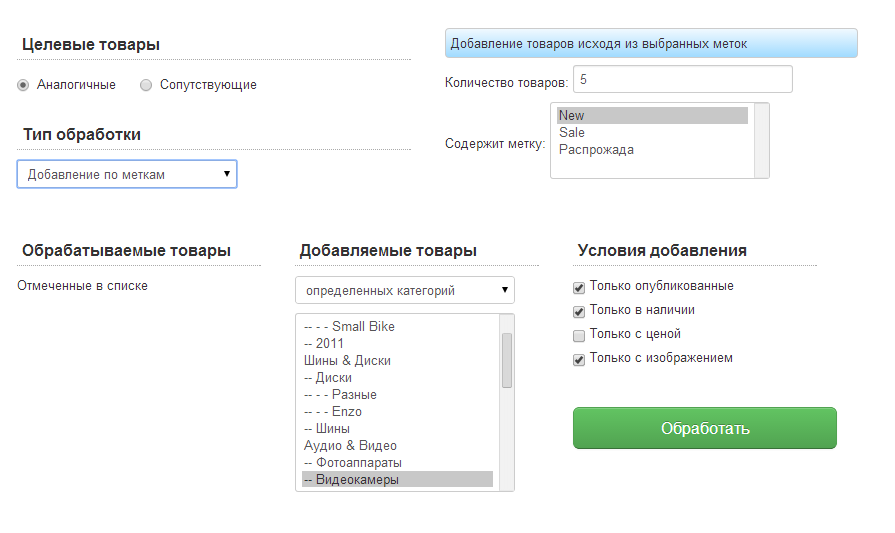
By labels

Selects products by JoomShopping labels.
  • Number of products
    Define the size of the generated list.
    STEP
  • Labels
    Choose one or more labels to use as a relation criterion.
    CONDITION
Selecting products by JoomShopping labels
In the older interface, multiple selection is done while holding Ctrl; in newer versions, use the current multi-select control.

Random selection

Generates a list of randomly selected products from the specified donor segment.
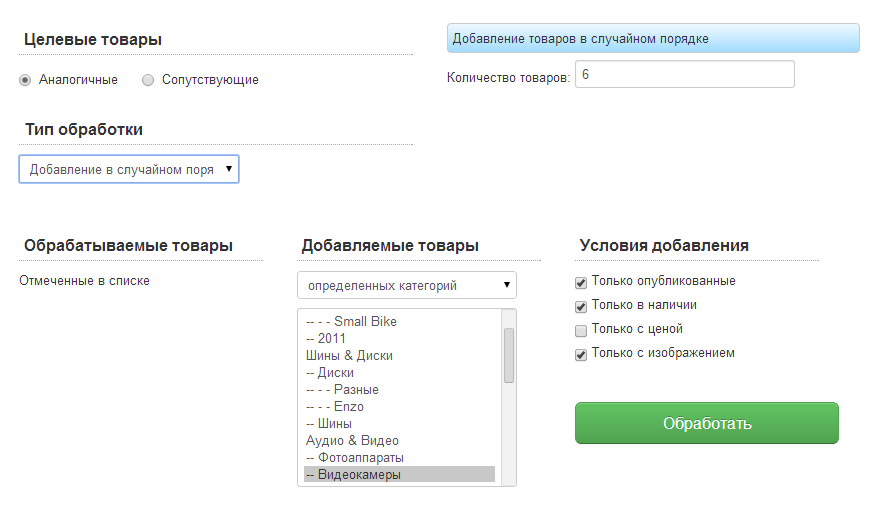
  • Number of products
    How many random products should be added.
    STEP
  • Source
    Choose a category, manufacturer, or vendor.
    SOURCE
  • Quality conditions
    If needed, include only published products, products in stock, products with a price, and/or products with an image.
    FILTERS
Generating a related product list randomly
This method does not search for similarity by a specific property — it randomly selects products from the allowed segment.

Step 4. Define the donor product segment

In most modes, you can limit exactly where the system may take products from for the generated list.
  • Category
    Select products only from the chosen category or categories.
    SEGMENT
  • Manufacturer
    Use products from a specific manufacturer.
    SEGMENT
  • Vendor
    Limit products to a specific vendor.
    SEGMENT

Why limit the donor segment

The more precisely the donor source is defined, the more predictable the result will be.

Step 5. Enable product quality filters

Before running the process, define which products are allowed to be added to the recommendation list.
  • Published only
    Do not add hidden or unpublished products.
    FILTER
  • In stock only
    Do not include out-of-stock products.
    FILTER
  • With price only
    Do not include products without a price.
    FILTER
  • With image only
    Exclude products without an image.
    FILTER

Step 6. Run processing

After selecting the relation type, matching method, number of products, donor segment, and add conditions, click Process.
  • Selected products
    Only the products you selected in the list are processed.
    SELECTED
  • Bulk processing
    The rule can be applied to a broader catalog segment.
    BULK
  • Clear lists
    Generated relations can be cleared in bulk.
    MANAGEMENT

Test the rule first

Before processing a large catalog, it is better to select a few recipient products, run the linking process, and verify the result on the product pages.

Practical scenarios

  • Similar products by price
    Show 5–6 products from the same category with a similar price.
    SIMILAR
  • Similar products by characteristics
    For a TV, select models with the required screen size and display technology.
    SIMILAR
  • Series by SKU
    Link products whose shared EAN/SKU fragment identifies the same series.
    SIMILAR
  • Related accessories
    For the main product, take recommendations only from the accessories category.
    RELATED
  • Labels
    Use New / Sale or custom labels as a relation rule.
    GROUPING
  • Random selection
    Show random products from a selected category or manufacturer.
    RELATED

Installation and updates

Install the extension using Nevigen Installer. After installation, enter the license key for the domain specified in the order.

Updates

Nevigen Installer is recommended for updating Nevigen extensions because it shows update availability and additional information before installation.

Support

If the automatically generated result is not what you expected, check which products are selected as recipients, which processing type is used, which donor segment is defined, how many products should be added, and which quality conditions are enabled.
Short brief

Tell us about your project

A few answers will help us understand your task and suggest the next step.

01. Task
02. Details
03. Contact details
You do not need a full technical specification. Describe the task in your own words.

Discuss an integration

Describe the service and the data to be exchanged. That is enough for an initial assessment.


What needs to be integrated?
You can select multiple options.
If the documentation is public, add a link. This will help us assess the integration more quickly.

How should the data exchange work?
For example: receive stock levels from a CRM, send orders from the website, or synchronize data in both directions.
What data needs to be exchanged?
Describe how you want it to work. Technical terms are optional.